

Code Blocks
Syntax Highlighting
Use GitHub style fenced code blocks to specify the language.
```javascript
$.ajax({
  url: "/api/getWeather",
  data: {
    zipcode: 97201
  },
  success: function( data ) {
    $( "#weather-temp" ).html( "" + data + " degrees" );
  }
});
```

Highlight Lines of Code
To put the focus on specific lines of your code block, use the following command:
[.code-highlight: 2]

```javascript
$.ajax({
  url: "/api/getWeather",
  data: {
    zipcode: 97201
  },
  success: function( data ) {
    $( "#weather-temp" ).html( "" + data + " degrees" );
  }
});
```

You can also highlight a range of lines:
[.code-highlight: 2, 6-8]

```javascript
$.ajax({
  url: "/api/getWeather",
  data: {
    zipcode: 97201
  },
  success: function( data ) {
    $( "#weather-temp" ).html( "" + data + " degrees" );
  }
});
```

Show Line Numbers
You can enable line numbers directly in code fence metadata:
```objectivec, [.line-numbers: true]
- (BOOL)treatParagraphsAsPresenterNotes
{
    return self.fileURL.paragraphsAsPresenterNotes;
}
```
Line numbers also work with [.code-highlight] commands.
Step through Highlighted Lines of Code
When presenting, you can step through multiple highlights incrementally. Place as many [.code-highlight] commands above a code block in the order you would like the lines of code to be highlighted when presenting.
[.code-highlight: none]
[.code-highlight: 2]
[.code-highlight: 6-8]
[.code-highlight: all]

```javascript
$.ajax({
  url: "/api/getWeather",
  data: {
    zipcode: 97201
  },
  success: function( data ) {
    $( "#weather-temp" ).html( "" + data + " degrees" );
  }
});
```
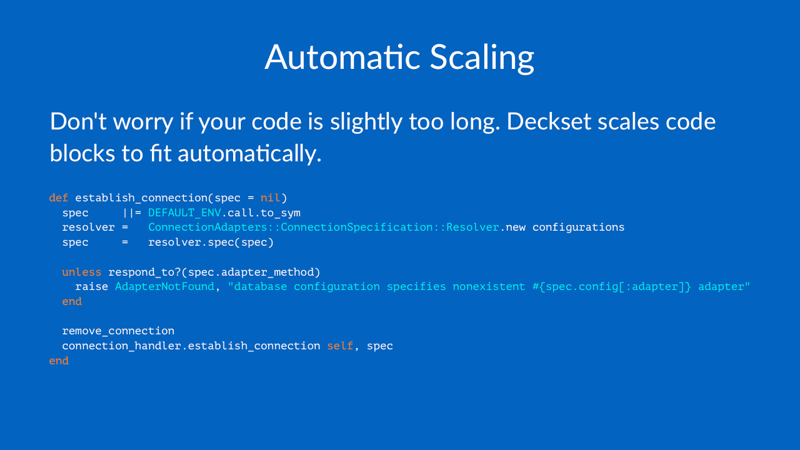
Automatic Scaling
Don’t worry if your code is slightly too long. Deckset scales code blocks to fit automatically.
```ruby
def establish_connection(spec = nil)
  spec     ||= DEFAULT_ENV.call.to_sym
  resolver =   ConnectionAdapters::ConnectionSpecification::Resolver.new configurations
  spec     =   resolver.spec(spec)

  unless respond_to?(spec.adapter_method)
    raise AdapterNotFound, "database configuration specifies nonexistent #{spec.config[:adapter]} adapter"
  end

  remove_connection
  connection_handler.establish_connection self, spec
end
```
Inline code
Use code within normal text by enclosing it in backticks like this:
`func map<A, B>(x: A?, f: A -> B) -> B?`

Code background
Use Deckset’s customization panel for your current theme to choose a code frame or a macOS-style window.
You can also configure code backgrounds in Markdown. Use box with a highlight.js theme to add a rounded code frame using that theme’s background and syntax colors:
[.code-background: box(github-dark)]
Use window with the same theme name to add a macOS-style frame with red, yellow, and green window controls:
[.code-background: window(github-dark)]
Use plain to remove the frame and return to the presentation theme’s syntax colors:
[.code-background: plain]
Add one of these commands at the top of a slide to style that slide’s code blocks. To apply the style to every slide, omit the brackets and place the command with the other global commands at the top of the document, for example code-background: window(github-dark).
Code window titles
When using the macOS-style window, add an optional title in the code fence metadata:
```swift, [.title: Location.swift]
typealias CLLocationAccuracy = Double
```
Deckset centers the title above the code and truncates long titles before they reach the window controls. Blocks without a title keep the same window layout. Titles appear only with the window style.